Eclipse plugin for JavaScript with Closure Compiler, Closure Library and Closure Linter
- Eclipse Plug-in ID: net.vtst.ow.eclipse.js.closure
- Version: 0.3.0
- License: Eclipse Public License.
- Distribution: JARs.
- Git repository: github.com/vtst/ow.
- Update site: copy this link to Eclipse.
Overview
This plugin extends JSDT, the JavaScript development environment for Eclipse, with some features which are useful for developers using the Closure Compiler, the Closure Library and/or the Closure Linter from Google. The main features are:
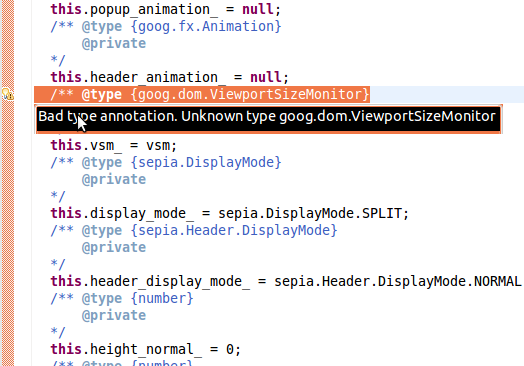
- Background build of JavaScript projects, using the Closure Compiler, in order to report errors.
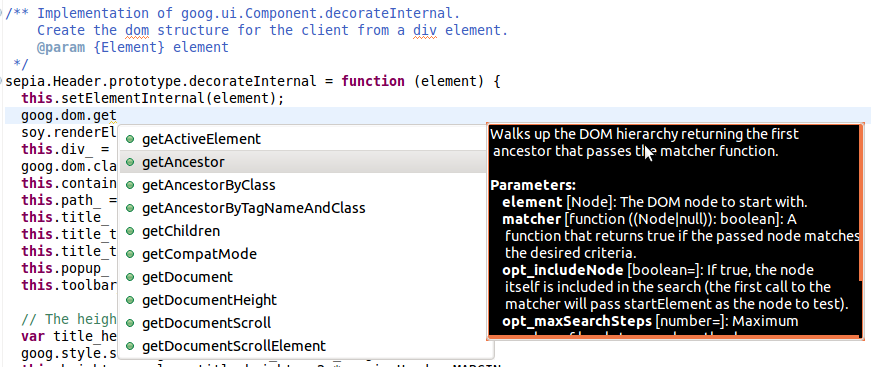
- Type-aware completion proposals, using the Closure Compiler. This is particularly useful for the Closure Library, but also works for user defined libraries.
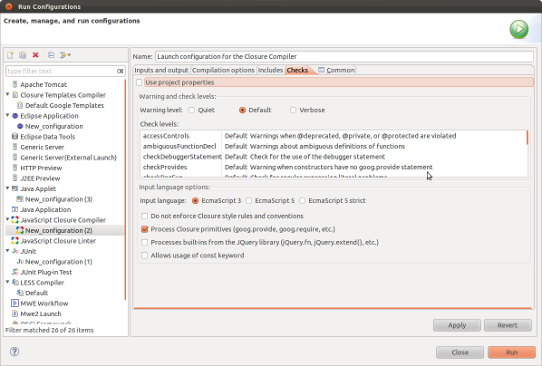
- Launch configuration for the Closure compiler.
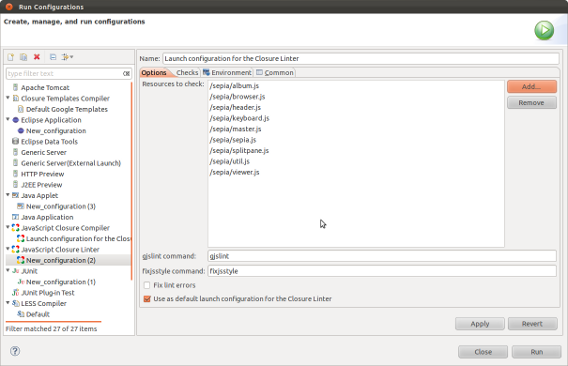
- Launch configuration for the Closure linter.
The following additional features are under development, and will be available in next versions:
- Launch configuration for launching the Closure Compiler from the Eclipse IDE.
- Outline view to browse the content of the Closure Library.
If you are also using the the Closure Templates, you may have a look to the Eclipse plugin developed for them.
Installation
Requirements
The plugin should run on all platforms where Eclipse and the Closure Compiler are supported.
Step 1: Install Base Software
In order to use the plugin, you need:
- Eclipse Indigo (version 3.7.1 or later), including JSDT from Web Tools Platform. You can download it from the Eclipse website. We recommend you install the package called Eclipse IDE for Java EE Developers.
- The Closure Library installed at some place in your computer. See installation instructions here.
- If you are using it, the Closure Linter installed at some place in your computer. See installation instructions here.
You don't need to install the Closure Compiler to run the plugin, because the JAR of the plugin already includes it. But you may download and install your own copy if you like to run the Closure Compiler out of Eclipse.
Note however that the Closure Compiler requires Java 1.7 at least to run.
Step 2: Install the plugin
- Open again the update manager (menu Help, then Install new software...).
- In the field Work with:, enter the URL of the update
site:
http://www.normalesup.org/~simonet/soft/ow/update/ - Select the JavaScript Closure plugin.
- Click on Next and validate the following messages to finalize the installation.
- During the installation, Eclipe will show a security warning. You need to acknowledge it.
- At the end of the installation, Eclipse proposes you to restart Eclipse for the installation to take effect. You should accept by clicking on Restart Now.
Step 3: Configure the plugin
The current version of the plugin requires a little bit of manual configuration. I'll try to make this more transparent in future versions, but for the time being:
- Open Eclipse preferences window (menu Window, Preferences), and display the page JavaScript, Closure.
- You need to fill the field Closure base directory:
with the full path of the directory where the Closure Library
is installed on your computer. This is the base of the
directory that contains the files base.js
and deps.js. Typically, it ends
by
/trunk/closure/goog. - You may adjust the cache settings. I strongly recommend to select Enabled for both, as it should drastically improve the JavaScript build performances.
- I also recommend that you disable the default completion proposals from JSDT. This is not required, because by default those of the Closure plugin will get merged with those of JSDT, but it does not really make sense to have both. To do so, display the preference page JavaScript, Editor, Content Assist, Advanced. In the first list (Select the proposal kinds contained in the 'default' content assist list), you should selct Closure Completion Proposals and deactivate other ones.
- If you use the Closure Linter, you should create a launch configuration for it. For this purpose, select the menu Run, Run Configurations, select JavaScript Closure Linter in the list on the left-hand-side, click on the button on the top left corner to create a new launch configuration, check the gjslint command, and select the option Use as default launch configuration for the Closure Linter. Once done, you can launch the Closure Linter directly by selecting a file or a project in the project explorer, and selecting Run As, JavaScript Closure Linter in the contextual menu.
- If you want to launch the Closure Compiler to generate compiled JavaScript files from the Eclipse IDE, you can create similarly a launch configuration for it.
- Select the project in the project explorer, and open its properties,
- Display the page JavaScript, Closure.
- Check the box Enable support for Closure Library and Closure Compiler.
- You may adjust the other settings in the sub-pages of Closure (but the default settings should be fine in many cases). If your project contains JavaScript files which should be ignored by the Closure support (e.g. compiled JavaScript files), you can set the source path on the property page JavaScript, Include Path, Source.
- Once you click on OK, a full build of your project should start in background. Once the build is completed, you will be able to use the completion proposals and to see the problem markers.
That's it.
Issues
- The plug-in runs the Closure compiler. If you're project is
large, the Closure compiler may require a large amount of
memory. As it is running in the same JVM as Eclipse, you may
need to start Eclipse with extended memory settings, e.g.:
-Xms256m -Xmx2048m. You can specify these settings either on the command-line, or in the configuration fileeclipse.ini.
Under the hood
JavaScript compilation with the Closure Compiler is time consuming. In order to make the plugin usable, I've tried to implement as much optimizations as possible for the background build (with the limit of keeping the Closure Compiler unchanged — though I make some calls of non-public methods thanks to Java reflection).
- Closure dependency primitives (
goog.provideandgoog.require) are analyzed, in order to include and compile only those which are required. - Library files are stripped (i.e. the body of functions is removed) in order to fasten their compilation),
- Abstract syntax trees are cloned in order to avoid re-parsing unmodified files,
- Hot swap (a feature of the Closure Compiler for doing partial compilation) is used as much as possible.
Of course, the optimizations are not enabled when you run the Closure Compiler from the launch dialog, so that the generated JavaScript file is correct.
The current version of the plugin has been designed to write JavaScript code that follows the Closure coding conventions. It should work properly as long as the Closure Compiler understands correctly your code. If you encounter some problems, please file a bug. Please note however that if you use the Closure Compiler only as a JavaScript minifier, it is probably not worth using this plugin.
License
The plugin is distributed under the Eclipse Plublic License Version 1.0.
History
-
Version 0.3.0 (2013-11-29, beta):
- Update to Closure Compiler v20131118.
- Version 0.2.8 (2012-10-27, beta):
-
Version 0.2.7 (2012-08-11, beta):
- Issue #73: fix issue with Java project nature.
- Compatibility with Eclipse 4.
- Version 0.2.6 (2012-06-16, beta):
- Version 0.2.4 (2012-05-25, beta):
- Version 0.2.2 (2012-05-22, beta):
-
Version 0.2.1 (2012-04-22, beta):
- Text hover in the JavaScript editor showing information from the Closure compiler.
- Launch configuration for the Closure compiler.
- Launch configuration for the Closure linter.
- Version 0.2.0 (beta): First release.